Before you open Binance’s entity verification form, have these to hand: the country of registration and registration number as they appear on the company’s official documents, a company email that has never been linked to a personal account, a document that verifies the operating address if it differs from the registered address, identity documents for the directors, ultimate beneficial owners and the other related parties, and someone who can sit in front of a camera for the liveness check (the help page calls this person the main trader). Which company documents you upload is decided by the verification page itself, from the country, legal form and nature of business you select.
How to sign up for a Binance entity account, and the password rule
A company with no Binance account starts from Sign Up on the official Binance website and chooses Sign up as an entity. The steps listed in Binance’s help centre guide, How to Complete Entity Verification: A Step-by-Step Guide, are:
- Click Sign Up on the official Binance website.
- Click Sign up as an entity.
- Enter the entity name.
- Enter your entity email. A 6-digit code arrives at that address; enter it to verify the email.
- Create a password and click Continue. The password must contain at least 8 characters, including at least one uppercase letter and one number.
- The page confirms that the entity account has been created. Click Next to start entity verification.
The entity name is asked for at step three, so have the company’s official documents beside you before you begin. For the entity email, pick an inbox that someone at the company will keep reading: the code lands there, and if the application is later rejected, the summary of reasons is sent by email as well.
Can an existing Binance account be turned into an entity account?
An account that is registered but not yet verified can be used as it is: click Log In on the official Binance website, go to Profile - Dashboard, and click Verify Now.
That route has a limit. If the email is already linked to a personal account, it cannot be upgraded to an entity account; entity verification has to be submitted from an unverified account. If the account in front of you has already been verified with personal ID, stop looking for an entity option inside it; take a different company email and register again through Sign up as an entity.
Country of registration and registration number come first
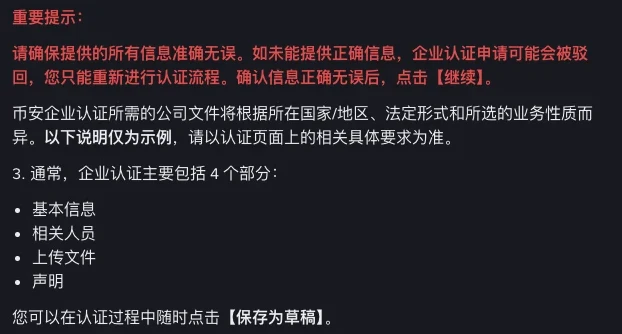
Inside the entity verification process, click Verify to start. The first things to enter are the country of registration and the registration number as displayed on the official corporate documents, followed by questions on the entity name, date of incorporation, entity legal form, business activities, shareholding structure and so on. Then click Save & Continue.
These answers settle what you hand over later. The corporate documents the page asks you to upload change with the country or region, the legal form, the nature of business you choose and the shareholding structure, so answer each one as the company really is, and don’t pick an option because it looks as though it needs fewer documents.
Fiat services are a separate item. Fiat Service Enablement is marked optional: if the company wants fiat services, go to Profile - Account - Identification to enable them.
All the information you provide has to be correct. If it isn’t, Binance may reject the entity verification application, and you will have to redo the full verification process. For anything copied from paper, such as the registration number and the date of incorporation, check it against the company’s official documents once more before you click Save & Continue.
After this step, entity verification generally includes four main sections: Basic Information, Related Parties, Upload Documents and Declaration. You can click Save As Draft at any time along the way.
The address and funding details Basic Information asks for
Basic Information starts with the registered address: jurisdiction, city, street address and zip code. If the operating business address is not the same as the registered address, upload a document for address verification, then click Continue.
Which documents count for address verification is answered in the frequently asked questions on the same page, in three groups. Each has to be issued within the validity period, and that period is based on the country’s requirements:
| Document type | What is and isn’t accepted |
|---|---|
| Bank statements | Digital statements are accepted too; you can send the original PDF and cover sensitive information such as transaction details |
| Utility bills | Electricity, water, fixed internet or landline bills and the like; mobile phone bills and insurance letters are not accepted |
| Government-issued documents | Letters from government agencies, tax bills and the like |
For the detail, Binance points to a separate help article, How to Verify My Residential Address on Binance.
After the address comes a set of additional information: source of wealth, source of wealth declaration, source of funds, funding method, total value of assets under management, monthly transaction volume of the company, preferred contact language, contact number, purpose of application and so on. Click Continue when the section is complete.
None of this group can be improvised while you fill in the form. Source of wealth, source of funds, assets under management and monthly transaction volume all have to come as real figures from whoever keeps the company’s books, and what goes on the form has to agree with the company’s accounts.
The four roles under Related Parties and what each person uploads
In Related Parties you click Add under each heading and enter the people one by one. There are four headings:
- Director(s) or equivalent persons
- Ultimate beneficial owner(s)
- Significant controller(s)
- Main account holder
Each person you add needs the following:
| For each person | What to enter or upload |
|---|---|
| Person information | Filled in for each person, including the residential address |
| Identification documents and proof of address | Uploaded, where applicable |
A person who holds more than one role can have all the applicable roles selected first and their information filled in once, and a role can be changed later by clicking Edit next to an existing person. The first heading reads “Director(s) or equivalent persons”, so a company with nobody titled director enters whoever holds the equivalent position.
The things this section needs are scattered across several people. Before you start, write out the names under the four headings and ask each person for a clear image of their identification document, their current residential address, and a proof of address in case the page asks for one.
The main trader has to pass a liveness check
Binance’s guide uses two labels here. The fourth heading under Related Parties is Main account holder, while the step that follows says the main trader needs to perform a liveness check. It does not say whether the two are the same person, so go by the prompt on the verification page for who has to do it. After clicking Verify Now, the check can be done on the current device or on the Binance App: log in to the entity account on the app and scan the QR code.
No hats, no glasses, no filters, and every photo taken under sufficient lighting. Whoever ends up doing the check should be someone who can be available on the days the form is being filled in, so the application isn’t finished everywhere else and waiting on one person.
Why the Upload Documents list differs from company to company
Upload Documents has no fixed list. The page shows a list and you upload against it item by item. What appears on it follows from the country, legal form, nature of business and shareholding structure you chose earlier, and a different legal form or nature of business changes the documents.
The help page says of its own examples: “The following instructions are examples only. Please refer to the actual requirements, specific to you, on the verification page.” So the order of preparation runs backwards: answer the earlier questions truthfully, let the verification page display the list, and only then go looking for the documents inside the company.
Once the listed items are uploaded, additional documents may be required depending on your business activity.
For documents that are not in English, Binance highly recommends providing a notarised translation into English, so that the review can be completed quickly.
If a document needs signatures, or you want to use the verification collaborators function, Binance has a help article for each: How to Request/Provide Signatures for Binance Entity Verification Documents Online, and How to Use the Verification Collaborators Function in Binance Entity Verification? Both are listed under Related Articles at the foot of the guide.
Where to check review progress and a rejection reason after the Declaration
The last section is the Declaration. Read it, select one director to agree to it, and click Submit; the page then says the application has been successfully submitted.
From there, you will be notified once the review is complete. If some time passes with no word, check your email for an update, or log in to the account and look under Profile - Account - Identification. If questions remain, contact Customer Service.
If the application is rejected, the reasons are in the summary Binance sends to your email, and the details are also under Profile - Account - Identification. A rejection for incorrect information means redoing the full verification process, so keep a copy, on the company’s own computer, of every document uploaded and every figure entered the first time.
How many Binance entity accounts can one company open?
One. The answer in the frequently asked questions is “Each company can only apply for one entity account”, and Binance offers a sub-account feature for entity accounts: once verification is approved, sub-accounts can be opened. To keep money for different purposes apart, open sub-accounts after approval.
As for who may use the account, clause 7.2 of Binance’s Terms of Use sets a requirement for corporate users: the company’s permitted users use the corporate account only for the company’s benefit and not on behalf of any third party, unless Binance has given its prior written consent. The terms define a permitted user as a person the company has identified under the terms, who is authorised to act for the company on the corporate account and has been notified to Binance.
Limits on a personal account go by its verification level. For a higher daily withdrawal limit on an entity account, contact your VIP account manager or Customer Service.
For fiat access on an entity account, apply via Profile - Account - Identification; you will be notified once the fiat application has been approved. Which fiat currencies and channels are available varies from one company’s case to the next; the fiat enablement page shows what applies to yours.